
Two-factor authentication (2FA) adds a second step when you sign in: your password, plus a 6-digit code from an app on your phone or in your password manager. With it on, a stolen password alone can't open your account. It is optional and free on every account.
What You Need
An authenticator app or a password manager that creates one-time codes. Any standard one works, including:
- 1Password or Bitwarden
- Google Authenticator or Microsoft Authenticator
- Authy
- The built-in Passwords app on iPhone, iPad and Mac
Turn On Two-Factor Authentication
- Sign in on the website and open My Account → Settings.
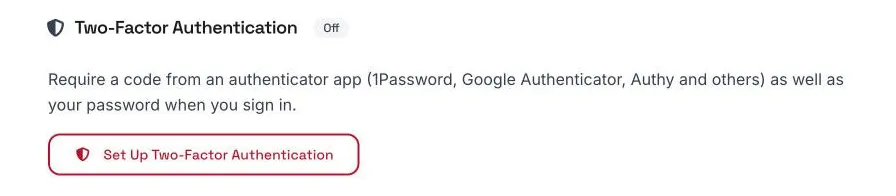
- In the Two-Factor Authentication card, click Set Up Two-Factor Authentication.
- Enter your HockeyShare password and click Set Up Two-Factor Authentication again.
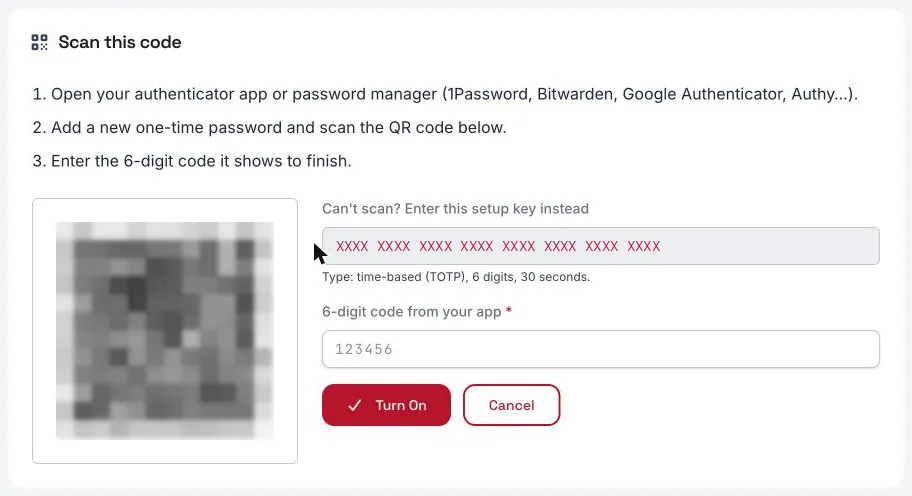
- In your authenticator app, add a new account and scan the QR code on screen. If you can't scan it, type in the setup key shown next to it.
- Enter the 6-digit code your app shows and click Turn On.
The QR code and setup key above are blurred examples. Scan the one shown on your own screen.
When it turns on, any other browsers signed in to your account are signed out, and we email you to confirm the change.
Save Your Recovery Codes
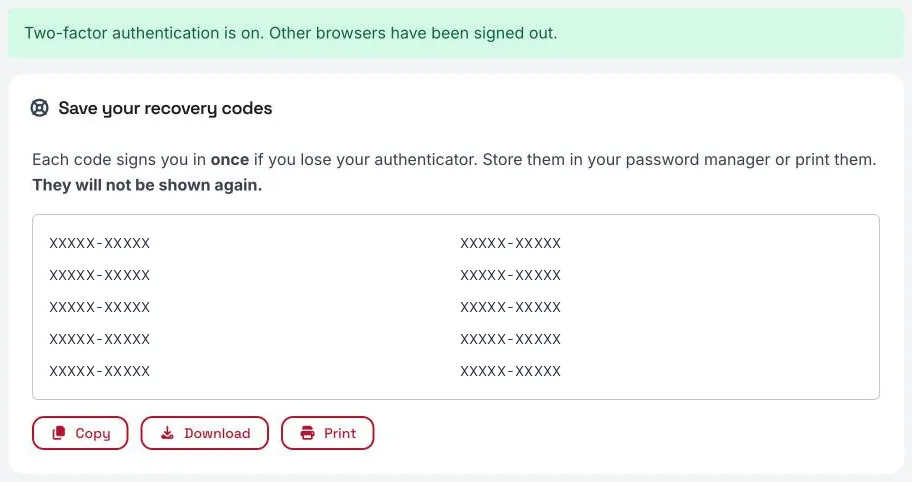
Right after you turn it on, you get 10 recovery codes. Each one signs you in once if you can't use your authenticator app.
The codes are shown only this one time. Click Copy, Download or Print and keep them somewhere safe, such as your password manager. Don't store them only on the phone that has your authenticator app.
Signing In With a Code
- Sign in with your username and password as usual.
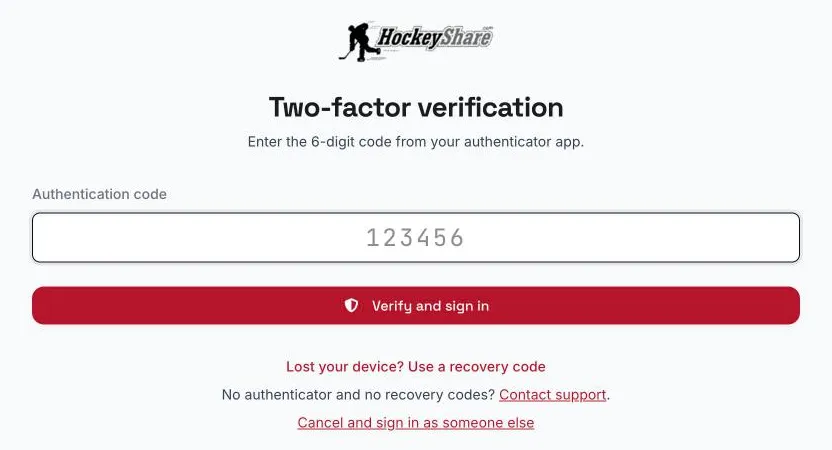
- On the Two-factor verification page, enter the current 6-digit code from your app.
- Click Verify and sign in.
- Codes change every 30 seconds, and each code works once.
- You have 5 minutes to enter a code. After that, sign in with your password again.
- After 5 wrong codes in a row, code entry is paused for 15 minutes.
- If you tick Remember me, that browser isn't asked for a code again until the saved sign-in expires.
- A sign-in link sent by email also asks for your code.
If You Lose Your Phone or Authenticator
- Sign in with your username and password.
- On the code page, click Lost your device? Use a recovery code.
- Enter one of your saved recovery codes.
You are taken to the Two-Factor Authentication page so you can set it up again on your new device: turn it off, then turn it back on and scan the new QR code. We email you whenever a recovery code is used.
If you have no authenticator and no recovery codes, contact support. We will ask you to confirm you own the account before we reset it. Resetting your password does not turn off two-factor authentication.
Managing Two-Factor Authentication
Go to My Account → Settings → Manage Two-Factor Authentication. The page shows when it was turned on and how many recovery codes you have left.
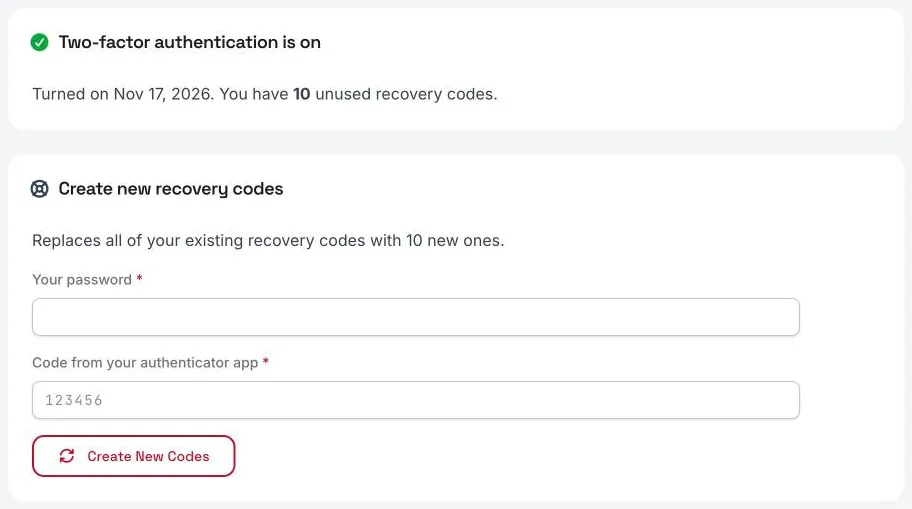
- Create new recovery codes – enter your password and a current code, then click Create New Codes. Your old codes stop working right away.
- Move to a new phone or app – turn two-factor off, then set it up again and scan the new QR code. If your codes live in a password manager that syncs between devices, you don't need to do anything.
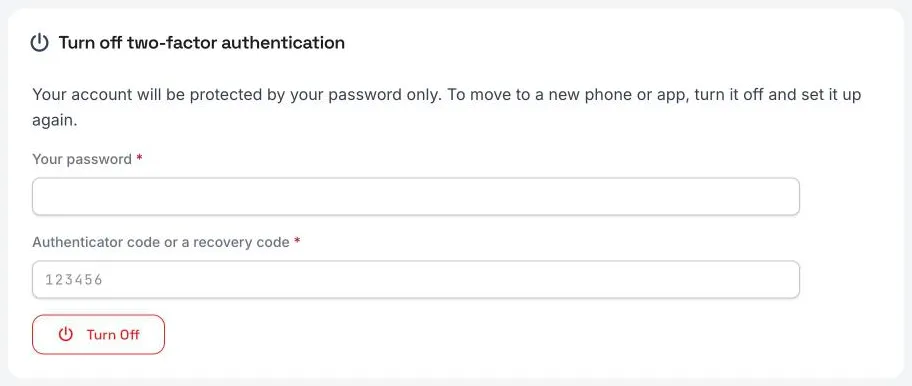
- Turn it off – enter your password and a current code (or a recovery code), then click Turn Off.
Phones, Apple TV and Connected Apps
- iPhone and iPad app – will support 2FA upon release.
- Apple TV – pairing is approved in your web browser, so it uses your code like any other sign-in.
- Connected AI apps – apps you have already connected keep working. Connecting a new one asks you to sign in on the website, including your code.
Troubleshooting
- "That code is not correct" – wait for the next code and try again. If it keeps failing, check that your phone's date and time are set automatically; codes depend on the clock.
- "Your sign-in timed out" – more than 5 minutes passed on the code page. Sign in with your password again.
- "Too many incorrect codes" – wait 15 minutes, then sign in again.
- Deleted the HockeyShare entry from your authenticator app – sign in with a recovery code, then turn two-factor off and set it up again.
- Got an email about a change you didn't make – change your password right away, check Active Sessions in Account Settings, and contact support.
- Trouble with your password – see Login Issues / Update Password.
Tips
- A password manager such as 1Password can fill in the code for you on the sign-in page.
- Create a new set of recovery codes when you are down to two or three.
- Team staff and association admins hold player and family details, so we recommend turning this on.