

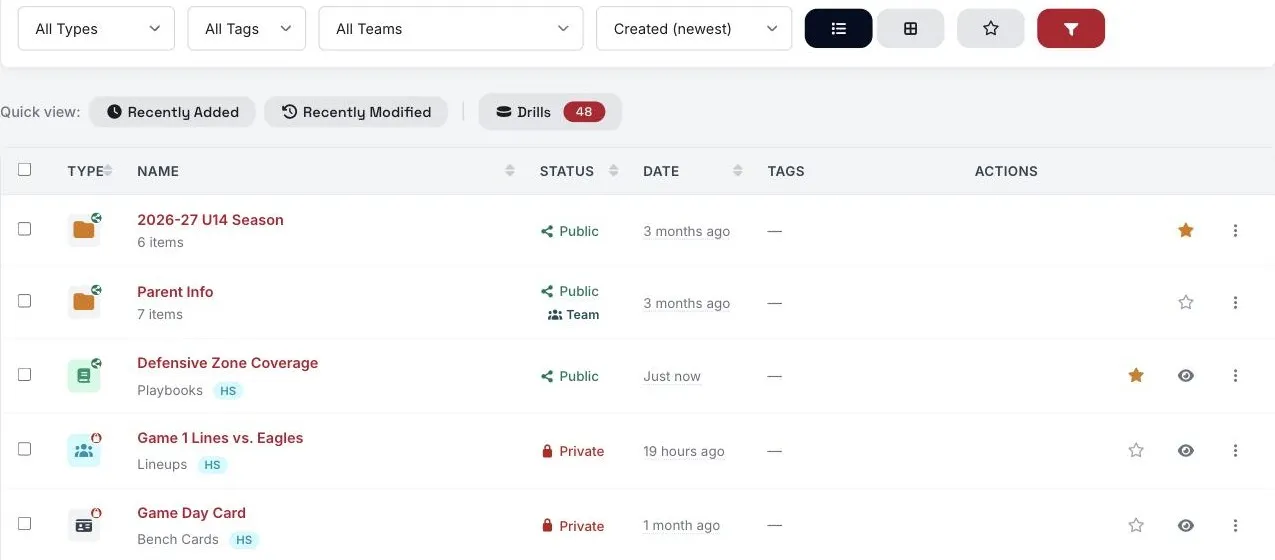
Once your Vault fills up, use the toolbar to find things quickly.
Search
Type in Search your vault... and press Enter. Search looks at titles, notes and descriptions across your whole Vault.
Filters
- All Types – show only one kind of content, like Files, Practice Plans or Playbooks.
- All Tags – show only items with a tag.
- All Teams – show content for one team. This works for playbooks, itineraries, lineups, team videos and bench cards.
Click Clear to reset the search, type and tag filters.
Sort and view
- Pick a sort order, like newest first or title A–Z. The Vault remembers your choice.
- Use the List and Grid buttons to switch views. Grid shows image previews.
Favorites
Click the star on any item or folder to make it a favorite. Click the star in the toolbar to show only your favorites.
Tags
Open an item's ⋮ menu and choose Tags. Tick tags and click Apply Checked to add them, or Remove Checked to take them off. Type in Create new tag... to add a new one.
Tags work on your own items, drills, plans, playbooks and bench cards. Lineups, itineraries, team videos and clips can't be tagged in the Vault.
Tips
- Favorite the five or six things you open every week, like your season plan and your parent letter.
- Tag by skill ("Breakouts", "Goalies"). Folders are better for season and team.
- Set your usual sort and view in Vault Defaults.